Common Cartridge is a new standard which allows content developed for one Instructional Management System (IMS) to be exported and imported by another. Moving beyond the SCORM standard, the Common Cartridge allows better integration of collaborative tools and activities.
Here are some FAQs about Common Cartridge and also a Chart of Common Cartridge as it relates to an IMS.
Tuesday, April 07, 2009

Friday, March 20, 2009
Music Tools
More tools for music...
Making Music Blog
Musician's Friend - great low-cost gear
American Musical Supply - more great low-cost gear
Denemo - Open Source Sheet Music Editor
Audacity - Open Source Multi-track Sound Recording and Editing
Making Music Blog
Musician's Friend - great low-cost gear
American Musical Supply - more great low-cost gear
Denemo - Open Source Sheet Music Editor
Audacity - Open Source Multi-track Sound Recording and Editing
Sounds of Silence
As the school term ends, I'm starting to think about summer evenings writing and recording music. Apartment living has its drawbacks, and a major one is that inspiration can't over-ride the rights of others to sleep in peace, and the "daily buzz" of life tends to get picked up on microphones.
As I was surfing around for new ideas on building a small "voice box" to sound-insulate the microphone from the rest of the apartment, I stumbled on some other great resources relating to soundproofing.
Here is some links to consider if you are building your own audio recording studio in a home, basement, or garage.
Construction Tips and Materials for Floors and Walls
Soundproofing Supplies - Residential and Commercial
Tips and Materials for Soundproofing an Apartment
Soundproofing Basic Theory
Portable Sound Control Booth - Homemade
Double Studwall Technique
Practical Sound Proofing including Windows and Ceilings
As I was surfing around for new ideas on building a small "voice box" to sound-insulate the microphone from the rest of the apartment, I stumbled on some other great resources relating to soundproofing.
Here is some links to consider if you are building your own audio recording studio in a home, basement, or garage.
Construction Tips and Materials for Floors and Walls
Soundproofing Supplies - Residential and Commercial
Tips and Materials for Soundproofing an Apartment
Soundproofing Basic Theory
Portable Sound Control Booth - Homemade
Double Studwall Technique
Practical Sound Proofing including Windows and Ceilings
Friday, March 06, 2009
Access to MySQL Conversion
I'm doing some web design experimentation with Joomla, Drupal, and Moodle. As I am exploring these open-source applications, I also have an interest in converting some Microsoft Access databases into MySQL.
The big application would be a simplified, self-service helpdesk system which would allow users to pick a major category, sub-category, and task for which they need tips / advice. I think this is easier to build and populate in Access and the "push" into a MySQL database. (Or at least those are my thoughts for the moment - unless other can recommend some really easy GUI-based MySQL interfaces which allow CSV imports.)
Here are some articles I've come across relating to converting Microsoft Access to MySQL.
MySql: Migrating from Microsoft SQL Server
Bullzip.com tool Access To MySQL
Drupal Taxonomy Quick Find module
Joomla FAQ Extensions
Joomla MultiSites Extensions (helpdesk as separate site from main)
The big application would be a simplified, self-service helpdesk system which would allow users to pick a major category, sub-category, and task for which they need tips / advice. I think this is easier to build and populate in Access and the "push" into a MySQL database. (Or at least those are my thoughts for the moment - unless other can recommend some really easy GUI-based MySQL interfaces which allow CSV imports.)
Here are some articles I've come across relating to converting Microsoft Access to MySQL.
MySql: Migrating from Microsoft SQL Server
Bullzip.com tool Access To MySQL
Drupal Taxonomy Quick Find module
Joomla FAQ Extensions
Joomla MultiSites Extensions (helpdesk as separate site from main)
Wednesday, February 25, 2009
What are Digital Tablets?
Digital tablets are computer input devices, very much like a mouse, but very much cooler. The tablet allows you to use an electronic pen, and this gives you much better control and resolution when drawing on the screen.
A simple application is signing your name on an electronic document.
With a mouse, your name would look childish or undecipherable.
With an electronic pen and digital table, the familiar motions of a ball-point pen are recorded to your screen.
A better application of this technology is a digital whiteboard. Using your laptop computer and an LCD projector in a classroom, you can use your digital tablet to take notes and project them on a screen. After class, you can make your handwritten notes available as an electronic file.
There are many vendors in the Digital Tablet marker, but one of the better known vendors is Wacom. Here is a company "pitch" video for their Bamboo Tablet line.
A simple application is signing your name on an electronic document.
With a mouse, your name would look childish or undecipherable.
With an electronic pen and digital table, the familiar motions of a ball-point pen are recorded to your screen.
A better application of this technology is a digital whiteboard. Using your laptop computer and an LCD projector in a classroom, you can use your digital tablet to take notes and project them on a screen. After class, you can make your handwritten notes available as an electronic file.
There are many vendors in the Digital Tablet marker, but one of the better known vendors is Wacom. Here is a company "pitch" video for their Bamboo Tablet line.
Thursday, February 05, 2009
Faster Bookmarks

I have a new homepage on my Internet browsers.
I've decided to create a webpage which has my most frequently accessed links, and I've saved it to my local network drive (so it follows me around campus). This allows me to create quickly access my bookmarks regardless of which computer I'm using, and yet it keeps my set of links private (stored on my campus network drive/not on an open website).
Part of the reason for "hiding" this - is that I have so many usernames and passwords, I can give myself reminders of my usernames for the sites I am accessing.
Click the image above to view a full-screen version of my bookmark setup.
If you already are using a social-bookmarking tool, another suggestion might be to make that your home page.
I use SeaMonkey (web browser suite) to edit the page. It has a built-in webpage editor called COMPOSER which allows you to easily create web pages without knowing HTML coding. Then the page can be saved wherever you wish.
This idea might be extended to online course sites, since faculty could create a series of resource links for students and then upload the HTML file into their course management system to share with students.
Tuesday, February 03, 2009
Video "Helicopter" Overhead Shots
I did a bit of video atop a paint-roller extension pole. I strapped the camera to the top of the pole and did a few quick overhead clips to demonstrate the potential for this project.
The video is a bit shakey because I'm walking and also the wind was gusting to 15MPH. On a warm, still day - the quality could be much better.
The video is a bit shakey because I'm walking and also the wind was gusting to 15MPH. On a warm, still day - the quality could be much better.
Tuesday, January 27, 2009
Video / Photo Shooting Table
Shooting Table Setup and Lighting - Video shows the setup and use of a video and photography shooting table constructed out of 3/4-inch PVC plumbing pipe and a translucent white portable filing box (for hanging file folders).
Overhead Laboratory Camera Mount - Video shows the setup and use of an overhead "tripod" for mounting a small camera or video camera to document laboratory procedures from an overhead view.
Sunday, January 18, 2009
Video Equipment Projects
Professional video gear is outside the budgets of most instructors.
Here are some innovative projects for "home-brew, do-it-yourself" construction of projects to extend your filming tools.
Radio Control Pan / Title Rig -- RC controller moves camera for aerial shots.
$14 Camera Stabilizer - shoot handheld video without the roller-coaster results
PVC Fig Rig stabilizer - shoot handheld video
Underwater Housing - for small video cameras (plans)
Underwater Camcorder Housing - Larger cameras
Near Infrared Filter - heat signatures'
Helmet Camera - Hands-free recording for point-of-view videos
Camera Crane for $60 - for very lightweight DV cameras
Camera Jib Crane and Tripod for $200 - for heavier cameras.
Track Dolly System for $100 - smooth "rolls" of camera along a path
Homemade Dolly for $50 - another version using PVC
Make a Greenscreen for Chroma Key - substitute background images (weathermap)
Timelapse Panning using an old clock motor
Microscope Video in Macro Mode
In Car Headrest Camera Mount
Dash Cam Mount
Bicycle Camera Mount
Motorcycle Camera Mount
Giant Tripod
Tripod Dolly - Rolling base for video
Camcorder Clamp Rig - clamp your video camera to most surfaces
USB Webcam Telescope - Turn an old USB camera and a Zoom lens into web-telescope
Build a Teleprompter - Less than $50 requiring software
Microphone Blimp / Boom - less noise and wind on your recordings
Here are some innovative projects for "home-brew, do-it-yourself" construction of projects to extend your filming tools.
Radio Control Pan / Title Rig -- RC controller moves camera for aerial shots.
$14 Camera Stabilizer - shoot handheld video without the roller-coaster results
PVC Fig Rig stabilizer - shoot handheld video
Underwater Housing - for small video cameras (plans)
Underwater Camcorder Housing - Larger cameras
Near Infrared Filter - heat signatures'
Helmet Camera - Hands-free recording for point-of-view videos
Camera Crane for $60 - for very lightweight DV cameras
Camera Jib Crane and Tripod for $200 - for heavier cameras.
Track Dolly System for $100 - smooth "rolls" of camera along a path
Homemade Dolly for $50 - another version using PVC
Make a Greenscreen for Chroma Key - substitute background images (weathermap)
Timelapse Panning using an old clock motor
Microscope Video in Macro Mode
In Car Headrest Camera Mount
Dash Cam Mount
Bicycle Camera Mount
Motorcycle Camera Mount
Giant Tripod
Tripod Dolly - Rolling base for video
Camcorder Clamp Rig - clamp your video camera to most surfaces
USB Webcam Telescope - Turn an old USB camera and a Zoom lens into web-telescope
Build a Teleprompter - Less than $50 requiring software
Microphone Blimp / Boom - less noise and wind on your recordings
Photo Construction Projects
Photography can be a central part to the design of a technical or health course, in order to show steps in a process, details of tools and materials, and to contrast and compare different items.
Taking effective photographs can be made simpler with the right tools. One of these tools is a "shooting table" on which items to be photographed are placed and lit.
Commercial Shooting Tables
B&H Photo Video - Shooting Tables
Adorama - Still Life Photo Equipment
Here are some links to construction ideas and parts for building a shooting table.
Taking effective photographs can be made simpler with the right tools. One of these tools is a "shooting table" on which items to be photographed are placed and lit.
Commercial Shooting Tables
B&H Photo Video - Shooting Tables
Adorama - Still Life Photo Equipment
Here are some links to construction ideas and parts for building a shooting table.
- Kee Lite Fittings - Aluminum pipe fittings - for use with aluminum electrical conduit
- Hartnagel - Specialy PVC Pipe Fittings - for use with PVC plumbing pipe
- PVC Fittings - Specialty Pipe Fittings - for use with PVC plumbing pipe
- Simplified Building Concepts - build your own shooting table with Kee Lite fittings
- PVC Light Tent - photograph objects with even lighting
- Build a Shooting Table for under $80 - from Worth1000 tutorials
- Shooting Table and Light Tunnel - in use
- Super Cheap Shooting Table - for macro photos
- PVC Light Box - Super Simple design
Monday, January 05, 2009
More FREE Software for College Students
Here are a few sites with recommendations on FREE software for college students.
College Crunch Free Software Guide - descriptions and screenshots
Campus Grotto - simple list of links
Microsoft DreamSpark - free development software to highschool and college students
Bill Mullins Blog on Best Free Software - links and descriptions
PortableApps.com - Free software that runs from a USB Flash Drive
Make Use Of Portable Software - 100 portable applications for a USB Flash Drive
College Crunch Free Software Guide - descriptions and screenshots
Campus Grotto - simple list of links
Microsoft DreamSpark - free development software to highschool and college students
Bill Mullins Blog on Best Free Software - links and descriptions
PortableApps.com - Free software that runs from a USB Flash Drive
Make Use Of Portable Software - 100 portable applications for a USB Flash Drive
Computer Programming in 3D

I stumbled upon a site from Carnegie Mellon University which is a FREE programming environment which allows students to learn the concepts of object oriented programming through building and animating virtual world scenes. After downloading and unzipping the program, you are given a step-by-step tutorial on how to use the application. It is quite fun, and you can build your own animation within minutes.
To get Alice, go to the downloads area of http://www.alice.org/
Alice runs on Windows, OSX and Linux.
Saturday, January 03, 2009
Effective Demonstration of Video - FreeDrumLessons.com
I am not a fan of "talking head" uses of video in online and hybrid courses. I feel that audio is a better vehicle if you aren't demonstration a process or procedure.
However, video can be essential to the success of students in an online course.
View a great set of FREE videos which are very effective at teaching techniques to students at FreeDrumLessons.com. The videos have the instructor explain the process, then demonstrate the process, and then provide sheet-music instructions for viewers.
Even if you've never drummed before, this site will get your fingers tapping!
However, video can be essential to the success of students in an online course.
View a great set of FREE videos which are very effective at teaching techniques to students at FreeDrumLessons.com. The videos have the instructor explain the process, then demonstrate the process, and then provide sheet-music instructions for viewers.
Even if you've never drummed before, this site will get your fingers tapping!
Wednesday, December 24, 2008
HTML_Cleaner Program Updated
Just a quick notice that I've updated my HTML_Cleaner program, and the current update will run through May 31, 2009.

The program performs the following actions:
The program performs the following actions:
- strips out all the inline "Microsoft junk" added into HTML files which are FILE > SAVE AS > FILTERED HTML. It makes "plain vanilla" HTML out of these files.
- creates thumbnail-sized linked images (to the full size versions) and enforces ALT tags for all <img> tags found in the document
- allows the inclusion of an external CSS stylesheet link.
Web and Media Accessibility Standards for Minnesota
If you are an educator in Minnesota, here are some links to check out regarding your obligations for making content accessible to individuals with disabilities.
- Minnesota Star Program - Minnesota's Assistive Technologies Act Program
- MnSCU Board Policiy 1B.4 -- Access for Individuals with Disabilities
- 16C.145 Minnesota Statutes – Nonvisual Technology Access Standards
- Section 713 of the Communications Act, 47 U.S.C. § 613 – Requirements for closed captioning of English video programming.
- Section 508 - Federal Rehabilitation Act revised in 1998 requiring electronic information and information technology (including intranet and internet accessibility) be accessible to persons with disabilities
Friday, December 19, 2008
Network Speed Test
Does your Internet connection seem to be creeping along?
Is it your connection, or all the "junk" in your browser and background applications?
A quick way to test is to go to the SpeakEasy.Net website for their Internet Connection Speed Test. The test allows you to choose servers from various parts of the country. It has even has a "car-like" speedometer.
Check out the Speedtest.
Is it your connection, or all the "junk" in your browser and background applications?
A quick way to test is to go to the SpeakEasy.Net website for their Internet Connection Speed Test. The test allows you to choose servers from various parts of the country. It has even has a "car-like" speedometer.
Check out the Speedtest.
Thursday, November 20, 2008
Moodle Tutorials in YouTube
The following are some interesting videos relating to Moodle which I found in YouTube.
Intro to OpenShare for Moodle 1.9 - allow specific content to be "open" to the general public within a course (Moodle Add-In)
MoodleMan - YouTube user with tutorials about how to use Moodle
- setting up parent roles as "mentors"
Uploading eXe SCORM content to Moodle
Correcting Student Writings within Moodle
Adding Wikis in Moodle
Maintaining Course Sites in Moodle (hiding articles)
Embed YouTube video in Moodle
Intro to OpenShare for Moodle 1.9 - allow specific content to be "open" to the general public within a course (Moodle Add-In)
MoodleMan - YouTube user with tutorials about how to use Moodle
- setting up parent roles as "mentors"
Uploading eXe SCORM content to Moodle
Correcting Student Writings within Moodle
Adding Wikis in Moodle
Maintaining Course Sites in Moodle (hiding articles)
Embed YouTube video in Moodle
Wednesday, November 19, 2008
Best Practices in Web Page Development
Here are good sites for developing better user experiences for users of your website.
Other Best Practices for the Web videos from Yahoo Videos
- Yahoo's Steve Souders - 14 Rules for Fast Web Pages
(PPT, video lecture) - Plaxo's Joseph Smarr - High-Performance JavaScript
(video lecture) - Yahoo's Matt Sweeney - Web 2.0: Getting It Right the Second Time
(video lecture)
Other Best Practices for the Web videos from Yahoo Videos
Monday, November 10, 2008
SCORM-Compliant Content Editors for Course Design
SCORM is an acronym for Sharable Content Object Reference Model.
Connexions - Rice University (cnx.org)
OpenLearn - The Open University
SoftChalk (commercial product)
uDuTu Online Course Authoring (Moodle Plugin)
eLearning XHTML editor (exe) - open source (creating new styles)
Reload Editor 2004
Xerte - University of Nottingham (open source)
Microsoft Learning Essentials for Office 2007
CourseLab
Connexions - Rice University (cnx.org)
OpenLearn - The Open University
SoftChalk (commercial product)
uDuTu Online Course Authoring (Moodle Plugin)
eLearning XHTML editor (exe) - open source (creating new styles)
Reload Editor 2004
Xerte - University of Nottingham (open source)
Microsoft Learning Essentials for Office 2007
CourseLab
Web Conferencing Tips
Here are some easy tips to help web-conferences run smoothly.
- Send out Agenda and all Documents to be distributed ahead of time.
- Initiate the connection/conference 15-minutes early ( to make sure technology works).
- Set documents to be released by all users, and allow documents to be saved from the session.
- Send out motions and reports ahead of time.
- Use “track changes’ when editing motions in "application sharing" - so that all users see the updates simultaneously.
- Let users know ahead of time if web-cams are preferred to be used or not.
- Inform users how to keep their microphones muted until they have something to say.
- “Share” the presentation role with those who are presenting materials - so that they have control over the pace of the slides, etc.
- Have people introduce who is speaking before making their points.
Tuesday, October 28, 2008
Portable Voice Recorders and Audacity
I have a couple digital voice recorders which allow me to record lectures, interviews, and conference presentations which I can later share electronically.
Two of the recorders create files in the Microsoft WMA format, but my favorite (and FREE open-source) editing program, Audacity, does not import WMA files.
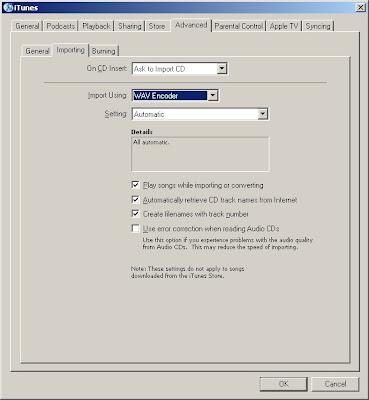
I use Apple's iTunes to convert the WMA files to WAV files (which can be edited in Audacity).
Here is the process.
Go into iTunes.
Use the menus EDIT > PREFERENCES >
[ADVANCED]..[IMPORTING] >
IMPORT USING: WAVE ENCODER // SETTING: AUTOMATIC
The use the menus FILE > ADD FILE TO LIBRARY, and select your WMA file(s).
As they are added to iTunes, the WMA files will be converted into .WAV files
The imported files are normally stored in your
MY DOCUMENTS > MY MUSIC > iTUNES > iTUNES MUSIC > UNKNOWN ARTIST folder
(or another subfolder if there is identifying track information from your recording device).
Two of the recorders create files in the Microsoft WMA format, but my favorite (and FREE open-source) editing program, Audacity, does not import WMA files.
I use Apple's iTunes to convert the WMA files to WAV files (which can be edited in Audacity).
Here is the process.
Go into iTunes.
Use the menus EDIT > PREFERENCES >
[ADVANCED]..[IMPORTING] >
IMPORT USING: WAVE ENCODER // SETTING: AUTOMATIC
The use the menus FILE > ADD FILE TO LIBRARY, and select your WMA file(s).
As they are added to iTunes, the WMA files will be converted into .WAV files
The imported files are normally stored in your
MY DOCUMENTS > MY MUSIC > iTUNES > iTUNES MUSIC > UNKNOWN ARTIST folder
(or another subfolder if there is identifying track information from your recording device).

Monday, October 27, 2008
MP3 Uses in the Classroom

Sure, iPods and MP3 players can be used to listen to content in face-to-face, hybrid, and online courses, but how can students be engaged in learning through use of their portable music players.
Most MP3 players also have a microphone and a recording function - so that you can use the MP3 device as a portable audio recorder.
Here are some interesting uses to consider.
1. Training Health Care Professionals
What does a normal heartbeat sound like? An abnormal one? What does chest congestion sound like in different areas of the lung? What about common phrases in different languages, such as "where does it hurt?" and "how badly does it hurt, a little, some, very bad?"
2. Interviewing Professionals
When students interview professionals working in the field, they can gain critical insights into the work roles they will soon be performing. When students record these interviews, they can concentrate more on the professional and using active listening rather that furiously scribbling notes. The recording can be reviewed later to prepare work for the homework assignment.
3. Audio Tour Guide
Can't afford to take the class on a field trip? Consider doing a walking tour through the site you wish students to visit and then give your students the audio files along with a map which indicates which audio track is associated with each location at the site.
4. Practice Vocabulary and Pronounciation
Ohhh... those latin roots, prefixes, and suffixes. Remembering them and learning to pronounce them can cause fits! Students can take advantage of using MP3 players in learning any language or vocabulary list.
5. Watch YouTube Videos and Photo Albums
Many MP3 players also can play MP4-format videos and display JPG-format photos. There is a free online site which allows you to download iPod style versions of online videos at http://converttube.com/
6. Research Via Podcasts
There are thousands of free, educational podcasts available as free subscriptions through iTunes. A quick search through the iTunes Store may expose you to some great supplementary (or required?) sites to which students can subscribe for additional course content.
7. Student Presentations Students who would otherwise present a PowerPoint or other presentation in front of a classroom could record their presentation and send the instructor and other students their PowerPoint and audio file. Viewers could click through the presentation as instructed, and audience members could provide feedback through posts on a discussion board or blog connected to the student's presentation.
Monday, August 11, 2008
Voki is a Talkie
Get a Voki now!
This is an incredibly cool tool for online. Voki.com allows you to create an avatar, record some audio, and then combine the two to create a talking character for your online course site. Use these characters as introductions to case studies to add interest and engagement. I'm trying to figure out if there are ways to capture the video of separate characters to build up a story line which goes back and forth between characters (as a normal video would). I'll post later if I come up with a simple solution.
Comical Content

If you have very little artistic ability, Toonlet.com is just the site for you.
Easily create cartoons using their built in tools. For each of your characters, you can specify hair, eyes, nose, mouth, ears, body, arms, and other attributes, and then you can stretch, move, and rotate any of these parts -- which is helpful in having your characters express emotion and movement. Save each of these snapshots of your character - and then simply click them into the cartoon cell you wish to edit. Add some words, and presto! Custom comical content!
Wordle.com Turns Your Words into Art

I stumbled upon a great new site that turns your words into art.
wordle.net generates a word-cloud from your writing, and the size of each word is related to the frequency to which you use the word.
My example above comes from my "Growing Your Online Course" article at www.PedagogyOnline.com.
The application is free to use, and it allows you to cut and paste content into an edit window, or allows you to scrape a blog with an RSS feed, or allows you to enter in the username of a del.icio.us user.
Saturday, August 09, 2008
Updated Teleprompter Script
Updated Teleprompter Script for Word 2007
Here is an updated macro script for Microsoft Word 2007. This turns your script into a WHITE text on black background, auto-scrolled text.
Remember that you can continue to use your MOUSE's SCROLL WHEEL while this macro is running - in case the script gets ahead of your (or behind you).
Sub VideoPrompter()
'
' VideoPrompter Macro
' Macro created 8/13/2007 by James Falkofske
'
' Autoscroll Window
Dim PauseTime, Start, Finish, TotalTime
Dim i, iMax As Integer
Dim i1, i2, i3, i4 As String
Dim fTiming, fFontSize As Double

'How big should the text be?
i3 = InputBox("Enter the Font size in points", _
  "Font Size", 32)
fFontSize = CDbl(i3)

'How many lines of movement are needed?
i1 = InputBox("Enter scroll-down-clicks for script", _
"Teleprompter Motion", 1000)
iMax = CInt(i1)

'How much of a pause between each movement of script
i2 = InputBox("Enter the delay moves (decimal seconds)", _
"Movement Timing", 0.35)
fTiming = CDbl(i2)


 With Selection.PageSetup
     .LineNumbering.Active = False
     .Orientation = wdOrientPortrait
     .TopMargin = InchesToPoints(0.5)
     .BottomMargin = InchesToPoints(0.5)
     .LeftMargin = InchesToPoints(0.5)
     .RightMargin = InchesToPoints(0.5)
     .Gutter = InchesToPoints(0)
     .HeaderDistance = InchesToPoints(0.5)
     .FooterDistance = InchesToPoints(0.5)
     .PageWidth = InchesToPoints(8.5)
     .PageHeight = InchesToPoints(11)
     .VerticalAlignment = wdAlignVerticalTop
     .TwoPagesOnOne = False
 End With

 ActiveDocument.Background.Fill.ForeColor.ObjectThemeColor = _
     wdThemeColorText1
 ActiveDocument.Background.Fill.ForeColor.TintAndShade = 0#
 ActiveDocument.Background.Fill.Visible = msoTrue
 ActiveDocument.Background.Fill.Solid

 Selection.WholeStory
 Selection.Font.Size = fFontSize
 Selection.HomeKey Unit:=wdStory
 ActiveWindow.ActivePane.View.Zoom.PageFit = wdPageFitBestFit

For i = 1 To iMax
    PauseTime = fTiming        ' Set duration.
    Start = Timer    ' Set start time.
    Do While Timer < Start + PauseTime
        DoEvents    ' Yield to other processes.

    Loop
   'Move down a small scroll increment
   ActiveWindow.ActivePane.SmallScroll Down:=1
Next i

End Sub
Wednesday, July 09, 2008
Productive Photoshop Sites
Sometimes you just need to go back to pre-school for some cool "show and tell." Show me something I've never seen before, and tell me how you did it.
To satisfy my curiosity (at least regarding Photoshop), I found a cool new site which provides links to large numbers of tutorials about Photoshop.
The site, http://www.photoshoplady.com/, presents thumbnails from each of the tutorials, so that you can quickly spin through the topics until something catches your eye.
Also, Adobe has a set of RSS tutorial feeds at http://www.adobe.com/support/rss/ . I'm a fan of RSS feeds in iTunes, to pull down feeds and then review them on weekends (normally listening to audio casts while running errands and shopping for groceries, and viewing video casts while weight-training).
To satisfy my curiosity (at least regarding Photoshop), I found a cool new site which provides links to large numbers of tutorials about Photoshop.
The site, http://www.photoshoplady.com/, presents thumbnails from each of the tutorials, so that you can quickly spin through the topics until something catches your eye.
Also, Adobe has a set of RSS tutorial feeds at http://www.adobe.com/suppo
Tuesday, July 01, 2008
Speaking Your Mind

Online courses normally expect both students and faculty to do more writing. Giving comments back to students can be made easier by recording your feedback and then sending your students the resulting MP3 files. Not only is this faster than typing out your feedback, but it also allows your personality and sense of humor to directly reach the students.
To meet accessibility standards, you'll need to poll your students to find out which ones would like and can use audio files. For the students who do not want audio files, post a list of their names near your computer - so that you can remember to provide written feedback instead on their works.
There are a number of audio recording tools which allow you to create MP3 files for your students. I personally prefer to use Audacity with the LAME plug-in (to create MP3 files). Audacity and LAME are open-source software tools which can be used without fee.
You can even save yourself some time while recording! If there are some standard types of mistakes students make, you can record that information once, and then "cut and paste" it into other recordings.
If you do not already have a computer headset with a microphone, I can recommend the Microsoft Lifechat 3000. It is a USB-connected device, so that it works on any computer, and it has the benefit of lower noise (normal sound-cards pick up a lot of line-power hum and suffer from microphones that pick up other electrical interference). On sale, this headset is about $30.
You might also use this technique to give feedback on other graded assessments, such as essay exams, projects, presentations, and discussions.
CAUTION: You probably do NOT want students to submit assignments or questions as audio files. It is a lot easier for you to "quickly scan" a text-comment than it is to listen to an entire recording (think about how you might prefer an email instead of an extensive voicemail message).
Wednesday, June 11, 2008
Office 2007 Add-In

There is an add-in for Microsoft Office 2007 that helps you search for commands, options, wizards, and galleries. Type in what you are looking for and the available commands show up to "click."
Find the add-in at:
http://www.officelabs.com/projects/searchcommands/Pages/default.aspx
and go to the right panel under TRY IT to download the add-in to your computer.
Tuesday, June 10, 2008
Ensuring Online Course Quality Experiences
The following is a list of Needs that should be discussed when designing online programs and courses. Need: Course Design
Need: Student Preparation
- Technical preparation (IMS use, homework file uploads and naming, network use from on/off campus, common quirks and workarounds)
- Self-motivation and responsibility
- Access to hardware / software
Need: Support Services to Students
- Technical help
- Library services
- Tutoring (online services versus on campus services)
- Advising and registration (online program plans that show sequence for completing all online)
- Marketing and promotion of available online courses
- “One-stop” contact for students needing help; standard answers, tracking, and forwarding issues
- Feedback mechanisms to students (after registration, after “certification,” new opportunities and courses, etc.)
Need: Faculty Preparation
- Technical training
- Pedagogy and instructional design training
- Assessments for online
- Communication strategies for online courses
- Best practices
Need: Course Offerings
- Suitability of course and content
- Strategic importance of online courses (what are the institutional reasons for offering online courses)
- How instructors are recruited (and which incentives are provided to course developers?)
- Courses which support lifelong learners (continuing education in addition to program completion)
- Integration with customized training and workforce development offerings
Need: Course Design
- Standardizing navigation, location, and document naming
(Syllabus, Course Schedule, Grading Rubric for ….) - Accessible (508 ADA)
- Rigor
- Assignment descriptions and grade assessment
- Tracking of students (demographics, preparation, and performance in courses)
Need: Feedback and Improvement
- Faculty self-assessment
- Peer review
- Student surveys
- Dean’s review
Subscribe to:
Posts (Atom)

 Posts
Posts


